Before you design anything, you fill your Claude project with the files Claude needs to get started. Think of the project as your website’s folder: everything you add to it here, Claude can use in every conversation from now on, so you never have to explain your business or your brand twice.
What you will get
A Claude project filled with everything needed to design your website: your brief, your tone of voice, your brand files and a complete design system.
What you’ll do in this chapter
You fill your project in three steps, in this order. Each one adds files to it.
- 3.1Write your briefAbout 30 minutesYour existing documents about your business, summarized into a one-page brief about what your website needs to know. It makes sure everything that follows is about your business, not a generic one. Adds: your documents and your brief.
- 3.2Set your tone of voice10 to 30 minutesHow you want to sound, so that every word Claude writes from here on, including the text in your first designs, sounds like you. Adds: your tone of voice, and optionally a voice guide.
- 3.3Create your design systemAbout 1 hourYour logo, mood board, colors and fonts, turned into the full set of rules every page follows. This is what makes every page look consistent and recognizably yours. Adds: your logo kit, mood board, brand guide and design system.
What you need
- Any documents you already have about your business, such as a pitch deck or a service list (optional)
- Your existing logo or brand files, if you have them
- For a voice guide: five to ten pieces of your own writing, such as posts, newsletters or customer emails (optional)
- A ChatGPT account: the free plan, or Plus for $20 for one month
3.1Write your brief
About 30 minutes
What this is for
AI is only as good as what you give it. Ask for “a website for my salon” and you get a website for a salon, which could be anyone’s. Give it the full picture of your business and you get a website for your salon. The hour you spend here saves you many hours of correcting generic results later.
This section has two parts:
- Part 1: Add your documents. Everything you already have about your business, such as a strategy document, a price list or your current website text. They hold the detail.
- Part 2: Write your brief. A one-page summary of what your website needs to know, which Claude writes from your documents and from your answers to its questions. It is the version you have checked, and every later step builds on it.
Both live in your Claude project, so every conversation about your website can use them.
Part 1Add your documents
Your documents give Claude the detail no summary can hold. Useful ones include:
- About your business: a business plan, strategy document, value proposition, or a pitch or sales deck
- What you sell: a price list, menu, service descriptions or packages
- What customers say: reviews, testimonials, and the questions people often ask you by email or message
- How you sound: the text of your current website, a brochure, newsletters or a few social media posts
PDF, Word and text files all work. For slides, save them as a PDF first. For your current website, copy the text into a document. Leave photos and logos for 3.3, and don’t add anything with customers’ personal details or private financial information. If you have no documents, skip to part 2.
Step by step
- Gather your documents. Don’t worry if some are old or overlap. Claude will sort that out.
- Add them to your project. In Claude, open your website project from Projects in the sidebar. Find the Files section on the right, click + and upload your documents. You can also paste text directly, for example a few reviews.
Part 2Write your brief
Most business documents were written for someone else: a pitch deck for investors, a strategy document for your team. Your website talks to customers. The brief turns what is in your documents into what matters for your website, settles things no document covers, and is short enough to take along to Claude Code in chapter 5.
The brief covers only what every later step needs: what your business is, what your website has to do and how you want to sound. The most important line is your website’s one main job: the single action you want visitors to take, such as booking an appointment, sending an inquiry, calling you or signing up. A website that tries to do three jobs tends to do none of them well, so pick one. Everything else on the website supports it.
Step by step
- Ask Claude to draft your brief. In your website project, start a new conversation and send prompt P2. If you added documents, Claude drafts the brief from them and then asks about anything missing. If not, it interviews you for the whole brief.
Copy-paste prompt P2
Draft my brief
What this prompt does: Claude reads the documents in your project, drafts a one-page brief for your website, then asks you about anything that’s missing.
I am building a website for my business. Use the documents
in this project to draft a one-page brief for it.

1. Write it for website visitors, not for investors or my
team.
2. If documents disagree, use the most recent version and
tell me which one you chose.
3. Go beyond summarizing: draw conclusions and connect the
dots, for example what my customers value most or what
really sets me apart. When something is your conclusion
rather than something my documents say, tell me.
4. Never make up facts or figures, such as prices, results,
numbers of clients, reviews or qualifications. If one is
missing, ask me.
5. The website must have one main job. If my documents
suggest several, ask me to choose one.
6. When the draft is done, ask me about anything missing or
unclear: one question at a time, most important first, and
no more than eight questions. Give an example answer with
each question, so I can answer quickly.
7. If this project has no documents, interview me for the
whole brief in the same way.
8. Leave "How I sound" empty. I will fill it in myself.
9. When we are done, write the final brief as one document.

<format>
# Website brief: [business name], updated on [date]
## In one line
## What I offer, with prices
## Who it is for (describe a typical customer)
## The problem I solve
## Why customers choose me
## Proof (one line)
## The website's main job (one action)
## How I sound
## Practical details: address, opening hours, contact
</format>
- Answer Claude’s questions. Rough answers are fine. Claude turns them into clear sentences.
- Check the brief. Read it carefully and correct every fact. If something doesn’t sound like you, say so and ask Claude to change it.
- Save the brief in your project. Ask Claude: “Save the final brief as a document in this project’s files.” Claude turns it into a document and adds it to your project, next to your other documents. If Claude shows the document but doesn’t add it, click the button on the document to add it to your project. Check that the brief now appears under Files.
3.2Set your tone of voice
10 to 30 minutes
What this is for
How you sound matters as much as what you say. Settling it now means everything Claude writes from here on, including the text in your first designs, already sounds like you, so you don’t have to rewrite it later.
There are two ways to do it, depending on whether you already have writing that sounds like you. Either way, by the end of this section your brief says how you sound, and Claude will write everything from here on in that voice.
If this is your first website
Describe in two or three sentences how you want to come across, and add them to the “How you sound” part of your brief. Something professional and clear is a perfectly good choice. For example: “Warm and professional, like a friendly expert. Short sentences, no jargon. Never pushy.”
If you already have a website or other published writing (optional)
Let Claude work out how you sound from what you have written, and turn it into a voice guide. It is worth doing if you have a recognizable voice you want to keep, and the guide is useful well beyond your website, from social media posts to emails.
Step by step
- Gather your writing. Collect a few pieces you have written yourself and are happy with: social media or LinkedIn posts, blog articles, newsletters, marketing emails, or emails to customers. Five to ten pieces is plenty. The more they sound like you at your best, the better the voice guide. You attach or paste them into the conversation with prompt P3; they don’t need to go into your project’s files.
- Ask Claude for a voice guide. In your website project, send prompt P3 with your writing attached or pasted in, and your website address if you have one. If your current website doesn’t sound the way you want to, leave it out and let Claude work from your other writing.
Copy-paste prompt P3
My voice guide
What this prompt does: Claude studies your published writing and turns it into rules it can follow, so every word on your new website sounds like you.
Study the writing I have published or sent to customers: my
current website, the writing I have attached or pasted
below, and anything similar in this project. Ignore internal
documents such as strategy notes or pitch decks.

My current website: [YOUR WEBSITE ADDRESS, OR LEAVE EMPTY]

<writing>[PASTE YOUR POSTS, ARTICLES, NEWSLETTERS OR
CUSTOMER EMAILS HERE. IF YOU ATTACHED THEM AS FILES, LEAVE
THIS EMPTY]</writing>

1. Write a one-page voice guide that describes how I write,
so you can write in my voice.
2. Write the rules as instructions you can follow, not as
descriptions. For example: "Open with a specific detail, not
a general claim."
3. Base every point on my writing, and quote short examples
from it.
4. If my writing is inconsistent, tell me and ask which
version sounds most like me.
5. If you cannot read my website, or there is too little
writing to judge, tell me rather than guessing.

<format>
# Voice guide: [business name]
## In short
Two or three sentences I can add to my brief.
## My voice in three words
For each: what it means in practice, and what it doesn't
mean.
## How I write
Five to eight rules: how I open, sentence length, how I
address the reader, how sure I sound, humor, how I end.
## Words and phrases
Ones I use, and ones to avoid.
## Conventions
I or we, spelling, exclamation marks and emoji, how formal.
## On my website
Headlines, button text, how long sections should be.
## Before and after
Three short examples of generic text, rewritten in my voice.
</format>
- Check it. Read the guide and the examples. Does it sound like you on a good day? Correct anything that doesn’t.
- Save it. Ask Claude: “Save the voice guide as a document in this project’s files, and add its summary to the How I sound part of my brief.” Check that both are up to date under Files.
3.3Create your design system
About 1 hour
What this is for
Your brand is the set of visual choices that make your business recognizable. Most people think of it as a logo, a few colors and a font. Those are the starting point, but a website needs more: a design system, the full set of rules every page follows, from the size of your headings to the look of your buttons. With one, every page looks like it belongs to the same website.
This section has three parts:
- Part 1: Your logo. Designed in ChatGPT, then made into clean files by Claude.
- Part 2: Your mood board, colors and fonts. How your brand should look and feel, including the style of your images, created in ChatGPT.
- Part 3: Your design system. Built in Claude from everything in parts 1 and 2.
The images themselves come later, in 4.5, once your design shows exactly which images you need.
Already have a logo, colors and fonts? Keep them, and skip the steps that create them. But do still make the mood board. A logo and a palette say little about how your website should feel, or what your photos should look like, and the mood board fills that gap. Then build the full design system from all of it in part 3.
Part 1Your logo
Claude can create logos and graphics, but it isn’t very good at it yet. For the creative artwork, you need a different tool. ChatGPT is very good at brand design: it can try out logo ideas, create a mood board and test color combinations in a way that feels like working with a designer. So you design your logo in ChatGPT, then let Claude turn the design into clean files you can use.
Know-how
Types of logo
Most logos are one of six types. Knowing them helps you tell ChatGPT what you want, and judge what it gives you.
What your logo kit includes
Whatever type you choose, you need more than one version of your logo. A website uses it in several places, at very different sizes, so get a full set from the start:
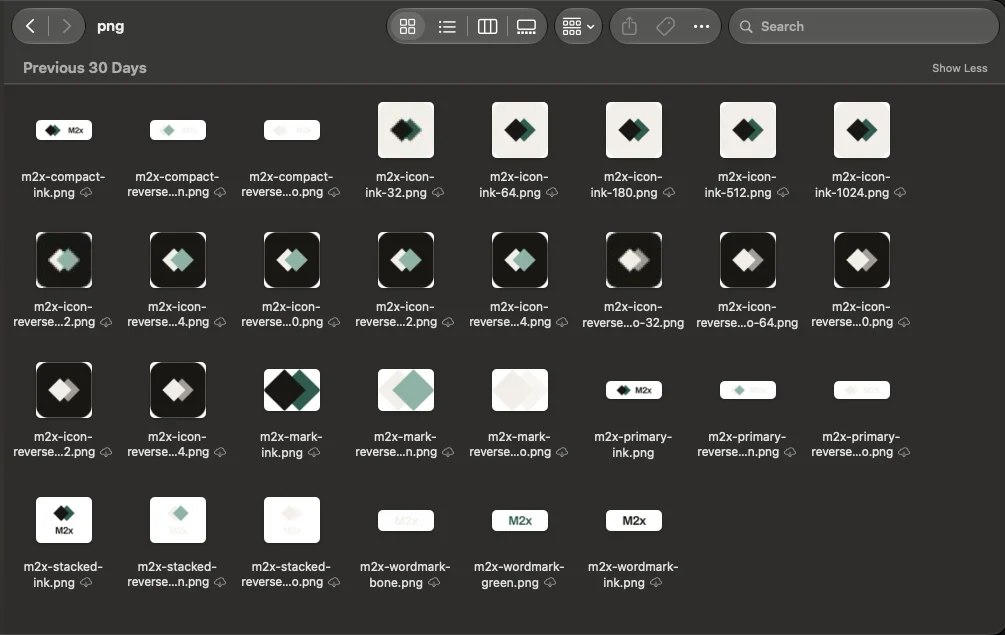
ChatGPT designs the kit, but its image files aren’t good enough to use as your logo: the edges tend to be slightly fuzzy, the letters are close to a real font but not quite, and the background is rarely truly transparent. So Claude recreates your kit as clean files, in two formats:
- SVG: a format that stays perfectly sharp at any size. Your website uses these.
- PNG: the image format everyone can use, with a transparent background so it sits cleanly on any color. You use these yourself, for example in your email signature, documents and social media.
Step by step
If you already have a logo, skip to part 2. If your existing logo files are poor quality, you can still use steps 6 to 9 to recreate them.
- Download your brief. In your Claude project, open the brief under Files and download it. If there is no download option, copy the text into a document and save it.
- Start a conversation in ChatGPT. Go to chatgpt.com, sign in, start a new conversation and attach your brief.
- Note your ideas for the logo. If you already have ideas, such as a logo type from the table above, a feeling, a symbol, colors or logos you admire, write them into the prompt below. If not, leave that part empty and let ChatGPT work from your brief.
- Ask for logo ideas. Send prompt P4.
Copy-paste prompt for ChatGPT P4
Logo ideas
What this prompt does: ChatGPT creates four clearly different logo directions based on your brief, then refines the one you choose.
I have attached the brief for my business. My own ideas for
the logo, if I have any: [YOUR IDEAS FOR THE LOGO: A
FEELING, A SYMBOL, COLORS, OR LOGOS YOU ADMIRE. OR LEAVE
EMPTY]

1. Create four clearly different logo ideas for [BUSINESS
NAME]: two wordmarks (the name in a distinctive font), one
with a simple symbol, and one monogram (initials).
2. If I have shared ideas, make at least two of the four
follow my direction. If not, base all four on my brief.
3. Base the feel on my brief: who my customers are and how I
want to come across.
4. Avoid clichés for my industry, such as scissors for a
salon or a lightbulb for a consultant.
5. Keep each one simple enough to work small: on a phone
screen and as a browser tab icon. No gradients, shadows or
fine detail.
6. Show each logo on a white background, in color and in
black.
7. Then ask me which direction I like, and refine that one
with me.
8. When I am happy, design my logo kit and show it as one
overview image on a white background: the main logo, a
stacked version, and an icon on its own, each in full color,
black and white, with clear space between them.
- Choose and refine your logo. Pick the direction you like most and ask for variations until you are happy. For a first website, a clean wordmark, your business name in a well-chosen font, is often the strongest choice. When you are happy, ChatGPT designs your full logo kit, as described above, and shows it as one overview image.
- Take a screenshot of your logo kit. ChatGPT is great at coming up with logo ideas, but its image files are too low in quality to use as your actual logo. So you only take its design, and let Claude make the real files in the next step. Make the overview image as large as you can on your screen, then take a screenshot: on a Mac, press Shift + Command + 4 and drag over the image; on Windows, press Windows + Shift + S. Also note the font names if ChatGPT mentioned them.
- Recreate your logo kit in Claude. In your Claude website project, start a new conversation, attach the screenshot and send prompt P5.
Copy-paste prompt P5
Recreate my logo kit
What this prompt does: Claude turns the logo kit ChatGPT designed into clean, professional files you can use everywhere.
I have attached a screenshot of my logo kit, designed in
ChatGPT. Recreate it as clean, professional logo files. The
fonts ChatGPT used or suggested, if I know them: [THE FONT
NAMES, OR LEAVE EMPTY]

1. Recreate each version as closely as you can: the main
logo, the stacked version and the icon, each in full color,
black and white.
2. Use real fonts. If you can identify the font, use it. If
not, choose the closest match from Google Fonts and tell me
which one you used.
3. Keep shapes clean and simple. Where the screenshot is
blurry or unclear, make a sensible choice and tell me what
you decided.
4. Show me all versions side by side, so I can compare them
with the original.
5. When I approve, create each version as an SVG file and as
a PNG file with a transparent background, at least 2,000
pixels wide.
6. Name the files clearly, for example logo-main-color.svg
and logo-main-color.png.
7. Put all the files in one folder called Logo kit, and give
it to me as a single zip file to download.
- Compare it with the original. Zoom in and check the letters, the spacing and the shapes. Ask Claude to fix anything that doesn’t match, or that you would like slightly different.
- Download your logo kit. Claude gives you one zip file with all your logo files. Download it, double-click it to unzip it, and move the Logo kit folder into a folder called “Brand”. If Claude says it can’t create files, turn on file creation: click your name, then Settings, open Capabilities and switch it on, then ask again.
If your logo is detailed
Claude recreates simple logos very well: wordmarks, initials and clean shapes. If your logo is detailed or hand-drawn, such as an illustrated emblem, Claude will simplify it. In that case you have two options:
- A designer: a freelance designer can turn your ChatGPT design into professional files, usually in a few hours of work.
- Recraft: an AI image tool that creates logos as SVG files from the start. You can upload your ChatGPT design as a reference, and download both SVG and PNG files.
Part 2Your mood board, colors and fonts
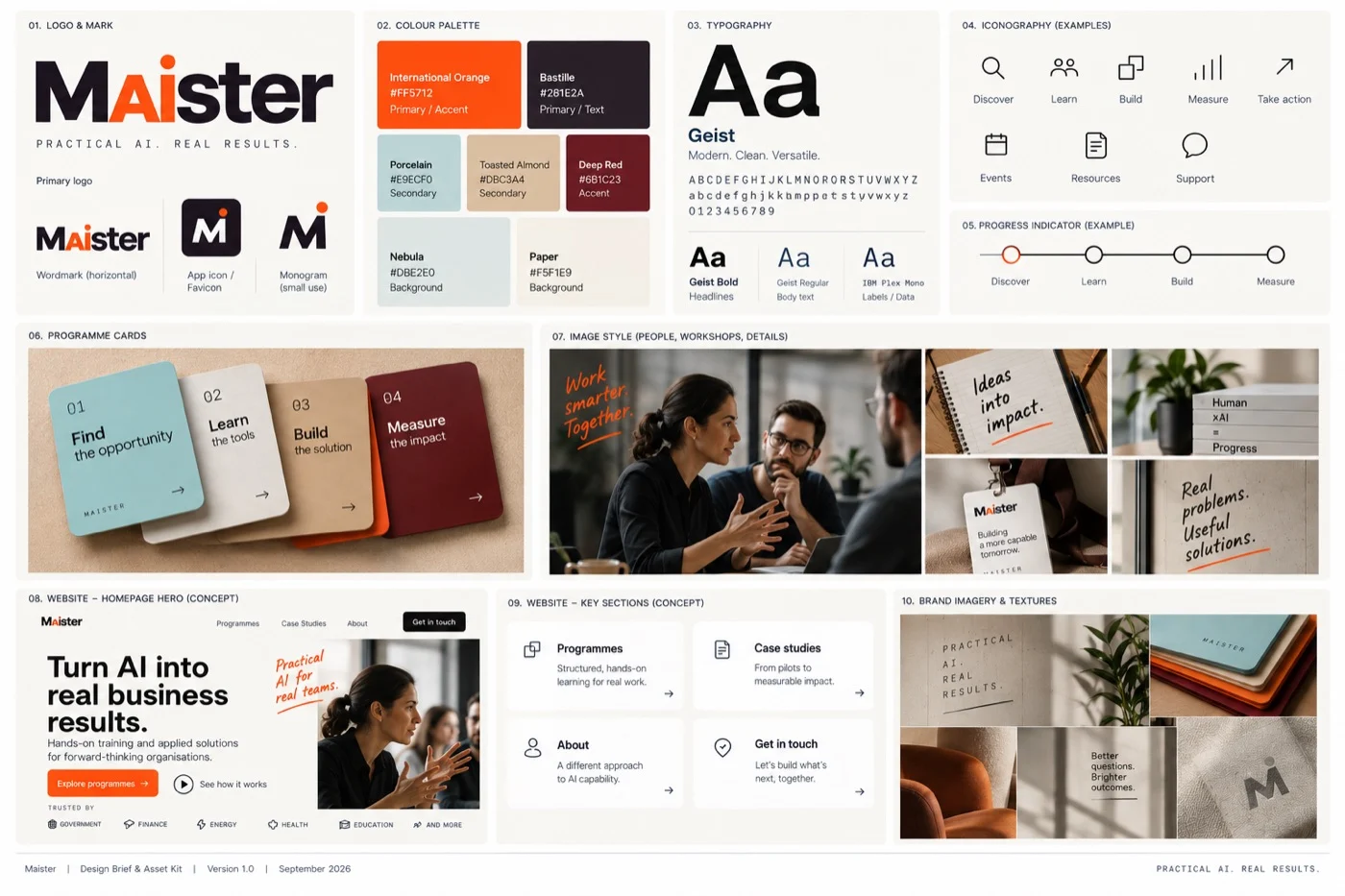
A mood board is a single image that captures how your brand should feel: the colors, textures, kind of photos and atmosphere. It gives Claude Design far more to work with than a logo and a list of colors, and it sets the style for your images later on. From it, you choose your colors and fonts. Do this part even if you already have brand colors and fonts.
Know-how
Colors and fonts
Colors and fonts say something about your business before anyone reads a word. A few basics help you choose well, and tell ChatGPT what you want.
What colors tend to signal
- Blue Trust, calm, reliability. Finance, health, tech, professional services.
- Green Nature, health, growth. Wellness, food, sustainability.
- Red Energy, urgency, passion. Food, retail, fitness.
- Orange Warmth, enthusiasm, approachability. Creative businesses, food, children.
- Yellow Optimism, attention. Best used as an accent.
- Purple Luxury, creativity. Beauty, wellness, coaching.
- Pink Softness, care, playfulness. Beauty, fashion, children.
- Black Elegance, authority, premium. Luxury, fashion, design.
- Earth tones Calm, natural, warm. Wellness, interiors, cafés.
These are tendencies, not rules. Meanings differ between cultures, and what matters just as much is what your competitors use: if every salon in your area is pink, a different color helps you stand out.
How to balance your colors
A simple rule designers use is 60-30-10: about 60% of your website in a calm main or background color, 30% in a supporting color, and 10% in an accent. Keep the accent for what you want people to click, such as buttons and links, so the eye goes straight there. Two or three colors plus white or a neutral is plenty.
Font styles
Three rules for combining fonts: use two at most, one for headings and one for text. Make them clearly different, for example a serif for headings and a sans-serif for text. And make sure the text font is easy to read at a small size on a phone. Script and display fonts never work for longer text.
Step by step
If you skipped part 1, first download your brief and start a ChatGPT conversation, as in steps 1 and 2 of part 1.
- Add your inspiration. If you have ideas for how your brand should look and feel, attach them to the same conversation: screenshots of a Pinterest board, photos you love, or colors and fonts you want to use. If you skipped part 1, attach your existing logo too. If you have no inspiration, skip this step.
- Ask for three mood board directions. Send prompt P6, and describe how your brand should feel in the space for your ideas, or leave it empty. ChatGPT’s free plan only creates a few images a day, so if you run out, either continue the next day or take one month of ChatGPT Plus.
Copy-paste prompt for ChatGPT P6
Mood board directions
What this prompt does: ChatGPT creates three different mood board directions for you to choose from.
Create three mood board directions for my brand. Use my
brief and my logo, which are in this conversation or
attached, and any inspiration I have attached, such as
screenshots of a Pinterest board or photos I love. My own
ideas, if I have any: [DESCRIBE HOW YOUR BRAND SHOULD FEEL,
AND ANY COLORS OR FONTS YOU WANT TO USE. OR LEAVE EMPTY]

1. Create three clearly different directions, for example
one calm and minimal, one warm and natural, and one bold.
Each must still fit my brief.
2. If I have shared ideas, make one direction follow them
closely, and let the other two explore further. Point out
anything in my ideas that clashes with my brief or logo.
3. Show each direction as one mood board image: colors,
textures, the kind of photos and the atmosphere, with the
color palette and a sample of the fonts on the board.
4. Give each direction a short name and one sentence on how
it would make my customers feel.
5. Then ask me which direction I prefer.
- Iterate until one direction feels right. It is rare for a first mood board to be exactly right. Tell ChatGPT what you like and what you don’t, and ask for a new version. You can also combine elements, for example “the colors of the first with the photos of the second”, or ask for a fresh set of three if none feels close. Keep going until one mood board feels like your business. Trust your reactions: if something feels off, say so, even if you can’t explain why.
- Choose your direction. When one mood board feels right, send prompt P7 with its name filled in.
Copy-paste prompt for ChatGPT P7
Colors and fonts for my direction
What this prompt does: ChatGPT turns the colors and fonts on your chosen mood board into exact color codes and real fonts you can use.
I choose this direction: [THE NAME OF YOUR FINAL DIRECTION]

1. Take the colors from that mood board and turn them into
an exact palette: one main color, one or two supporting
colors and a background color. Say what each color is for.
If I already have brand colors, use those and only add what
is missing.
2. Give every color its hex code, the code websites use, for
example #2F5D8C.
3. Check that text in my main colors is easy to read on my
background color, and adjust any color that isn't.
4. Name the fonts from that mood board as two fonts from
Google Fonts, one for headings and one for text, and say why
they fit. If they aren't on Google Fonts, suggest the
closest match. If I already have brand fonts, use those.
5. Then ask me what I would change, and adjust it with me.
- Check your colors and fonts. Read what each color is for, and check them against the colors and fonts box above: one calm main color, an accent for buttons, and two fonts that are easy to read.
- Adjust until it feels right. Ask ChatGPT to change anything that doesn’t feel like your business, such as a color that is too cold or a font that is too formal.
- Download your mood board. In ChatGPT, click the mood board of your chosen direction to open it full size, then click the download button at the top. You can also right-click the image and choose to save it. Save it in your “Brand” folder, next to your logo kit.
- Create your brand guide. Send prompt P8. Download the PDF and save it in your “Brand” folder. It keeps everything in one place, and you will upload it in part 3.
Copy-paste prompt for ChatGPT P8
My brand guide
What this prompt does: ChatGPT puts your chosen direction into a one-page brand guide you can download and keep.
Put my chosen direction into a one-page brand guide.

1. Include the mood board, my colors with their codes and
what each one is for, my fonts and where to use each, and a
short description of my image style.
2. Use only what we agreed in this conversation.
3. Give it to me as a PDF I can download.

<format>
# Brand guide: [business name]
## Mood board
## Colors: name, color code, what it is for
## Fonts: headings and text
## Image style
</format>
Part 3Your design system
You now have your key brand elements: your logo kit, your mood board, and your colors and fonts. In this part, Claude turns them into a design system: it works out everything else that follows from your choices, and saves it as rules. A design system covers:
- Colors, with a job each: your main color, background colors, text colors, and an accent for buttons and links
- Typography: your fonts, and the exact sizes for headings, text and small print
- Spacing and layout: how much room there is between elements, and how wide text and pages can be
- Components: the building blocks that repeat across your website, such as buttons, cards, forms and the menu, and how each one looks
- Details: rounded or sharp corners, shadows or none, how things move
- Image style: the kind of photos and illustrations that fit your brand
From then on, every page Claude Design creates follows those rules, so you never have to repeat your colors or fonts in a prompt, and your whole website looks consistent.
Step by step
- Add your brand files to your project. In Claude, open your website project from Projects in the sidebar. Under Files, click + and upload everything from your “Brand” folder: your logo kit, your mood board and your brand guide.
- Add anything you already had. If you skipped part 1 or part 2 because you already have a logo, colors or fonts, upload those too: your logo files, any existing brand guidelines, and a short note of your colors with their codes and your fonts if they aren’t written down anywhere else.
- Ask Claude for your design system. In your website project, start a new conversation and send prompt P9.
Copy-paste prompt P9
Create my design system
What this prompt does: Claude turns your logo, mood board, colors and fonts into a full design system that every page of your website will follow.
Using the brand files in this project, create a design
system for my website.

1. Base everything on my brand files: my logo kit, mood
board and brand guide, or my existing brand materials.
2. Where something isn't defined yet, such as sizes or
spacing, make choices that fit my brand, and tell me what
you decided.
3. Cover everything a design system for a website needs.
4. Make sure text is easy to read: enough contrast with its
background, and large enough on a phone.
5. Show me a one-page preview: my colors, my fonts at each
size, and the main components.
6. When I approve it, save it as a document called Design
system in this project's files.
- Check the preview. Look at your colors, fonts and buttons together. Does it feel like your mood board? Ask Claude to change anything that doesn’t, for example “make the buttons rounder” or “the headings feel too big”.
- Approve and save it. When you are happy, tell Claude you approve. It saves the design system as a document in your project’s files. Check that it appears under Files, next to your brief. From now on, every design you make in this project follows it.
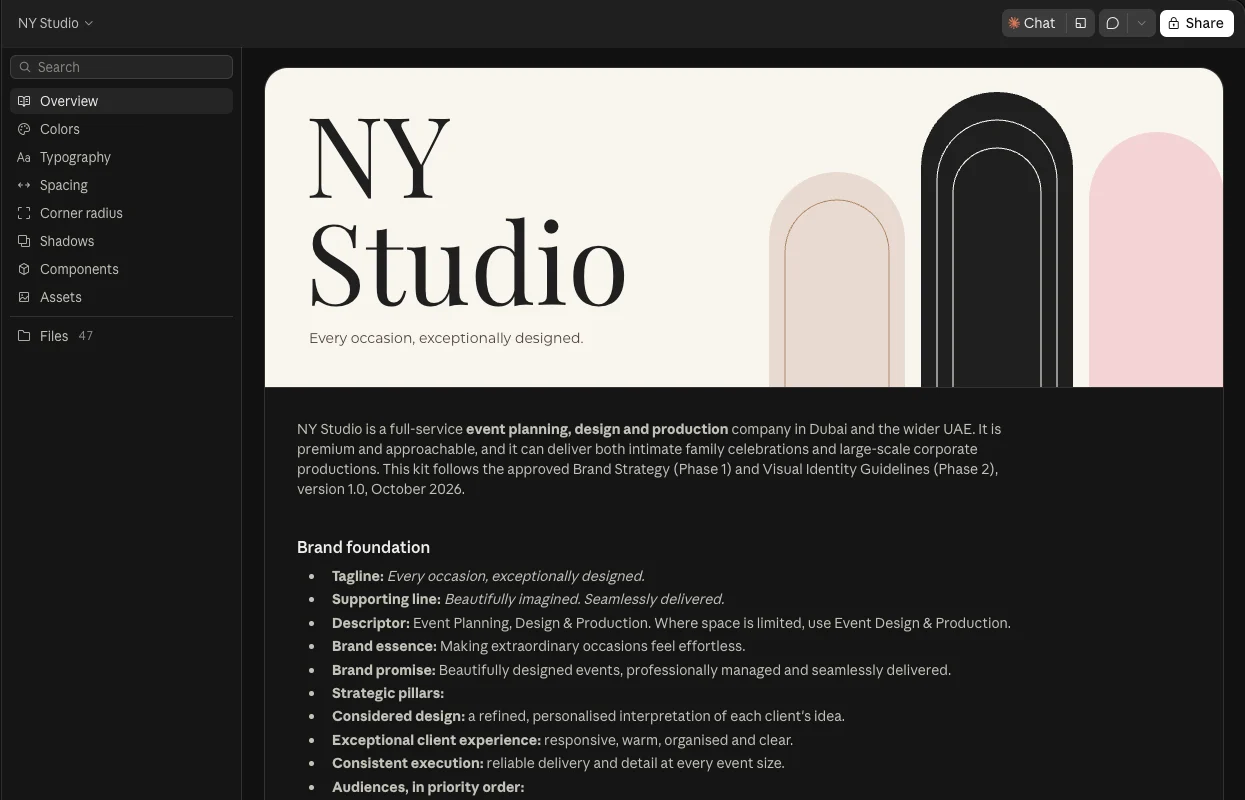
Your project is ready. It holds your brief, your voice and your full brand, so Claude knows your business, how you sound and exactly how your brand looks. That is more than most agencies start with.
In chapter 4, you use all of it to design your website, page by page.
Now the fun part!