
Before you design or build anything, you need the right tools in place. This chapter explains which tools you will use and why, what they cost, and how to set them up.
What you will get
Everything you need to build your website, set up and ready to go.
What you’ll do in this chapter
Setting up takes three steps, in this order.
- 2.1Get to know your tool stackAbout 10 minutesThe tools you will use, what each one is for and what it costs. Knowing which tools you need now, and which only later, means you only pay for what you use.
- 2.2Get your domain and email accountsAbout 20 minutesYour web address and a professional email address on it. You set these up first, because a new domain can take a few hours to become active, and you use the new email address for everything else.
- 2.3Set up ClaudeAbout 20 minutesYour Claude account, set up for building your website. Claude is where you do most of the work, so it is worth getting right once.
What you need
- Two or three ideas for your domain name
- A payment card for Claude Pro and Google Workspace
- A Mac or Windows computer
2.1Your tool stack
About 10 minutes
What this is for
Your tool stack is the set of tools you use together to build your website. This section introduces each one before you sign up for anything, so you know what it is for, what it costs and when you need it.
A few of them are the must-haves that make up your website. The rest are extras you pick up along the way, and how many you need depends on how much material you already have and how far you want to take your website.
The must-haves
There are four must-have tools. Without them, there is no website: nothing to build it with, no address for people to find it at, no professional email to reply from, and nowhere for it to live online. If it helps to picture it, Claude is your team, the domain is the address on your door, email is your phone line, and hosting is the building your website lives in.
In this chapter, you set up Claude, your domain and your email, if you don’t have them yet. Hosting comes in chapter 5, when your website is ready to go online. You will keep using all four for as long as your website exists.
yourbusiness.comSquarespace, bought through Google WorkspaceYearly fee · About $12 a year for a .comhello@yourbusiness.comGoogle WorkspacePer person, per month · $7 a month paid yearly, or $8.40 paid monthlyClaude does most of the work, and it is really three tools in one subscription:
- Claude is where you think and write: your brief, your page plan, your text.
- Claude Design is where you design: every page, for computer and phone.
- Claude Code is where you build: it turns the design into a working website.
Because the three are connected, what you decide at one stage carries over to the next. Your brief informs the design, and the design goes straight into the build. The website files Claude Code creates are entirely yours, so you can move them to another host at any time. And once your website is live, a change is a message to Claude, not a bill from a developer.
Already have a domain, or email on your own domain? Keep them. There is no need to switch to the providers above, and nothing in this guide depends on where your domain or email is. The web address and email rows are only for readers starting from scratch. Section 2.2 explains what to do in each case.
The extras
The next tools each do one job, at one point in the process. You might use ChatGPT for an afternoon to create your logo, or Higgsfield for a few days while you make your images, and then not open them again. Others, such as Google Search Console, you set up once and check now and then.
You don’t need to sign up for any of them now. Each one is introduced in the chapter where you use it, with what it costs and how to set it up. Several are optional: use them if they help your website, and skip them if they don’t.
Know-how
How the costs work
None of these tools is expensive, but they charge in different ways. Knowing how each one works helps you avoid two common surprises: running out of usage in the middle of a session, and paying for months of a tool you only needed once.
- Subscription: a fixed price every month or year. Paying yearly is usually cheaper, but you commit for longer.
- Usage limits: a subscription with a cap on how much you can use in a period. Claude Pro has limits that reset every few hours, plus a weekly limit, shared by Claude, Claude Design and Claude Code. If you hit one, you wait for it to reset.
- Credits: you buy a number of credits, and each task uses some. Higgsfield works this way.
- Yearly fee: your domain renews once a year.
- Per person, per month: Google Workspace charges for each email account you create.
- Free plan with limits: Netlify’s free plan gives you 300 credits a month. Visitors use some, and so does each time you publish your website, but a small business website rarely runs out. (And honestly, if your website gets more visitors than the free plan can handle, you’ll hopefully have enough new customers to pay for the $9 plan.)
One more way to save: you only need Claude Pro while you are building or making changes. Your website keeps running on Netlify either way. Between bigger updates, you can switch to Claude’s free plan and switch back for a month when you next want to change something.
2.2Get your domain and email accounts
About 20 minutes
What this is for
Your domain is your address on the internet: the name people type to find your website, such as yourbusiness.com. The same domain gives you a professional email address, such as hello@yourbusiness.com, which looks more credible than a Gmail or Hotmail address.
You set both up now, before anything else, for two reasons. A new domain can take a few hours to become fully active, so it will be ready by the time you need it. And once you have your new email address, you can use it to set up Claude in 2.3.
The simplest way to do both at once is to buy your domain while you sign up for Google Workspace. Google registers the domain for you through Squarespace and sets up your email automatically, so it works straight away.
If you already own a domain, skip to If you already have a domain below.
Choose your domain name
- Keep it short and easy to spell. Imagine saying it out loud over the phone. If you have to spell it, simplify it.
- Use your business name if you can. If it’s taken, add a word that describes what you do or where you are, such as
studiolunadubai.com. - Choose a trusted ending. See below.
- Avoid hyphens and numbers. They are easy to forget and easy to get wrong.
- Check your social media handles. It helps if your domain matches your name on Instagram and other platforms.
Choose your ending
The ending is the part after the dot. It tells visitors something about you before they even open your website, so it is worth choosing carefully. These are the ones worth considering:
Avoid any other ending, such as .biz, .info, .xyz, .online or .site. They are often cheap in the first year, but they look less trustworthy to visitors, email sent from them is more likely to end up in spam folders, and many renew at a much higher price.
Tip
Not every country ending is available through Google Workspace sign-up, which uses Squarespace. A .ae domain, for example, has to be registered with an accredited provider in the UAE, which may ask for details of your UAE business. If your ending isn’t available, buy the domain from a local provider first, then follow If you already have a domain below.
Step by step
- Go to workspace.google.com and click Get started.
- Enter your business name, the number of people who will need email (just you is fine), and your country.
- Enter your name and your current email address. Google uses this to contact you about your account.
- When Google asks whether your business has a domain, choose the option that says you don’t have one yet and need to buy one.
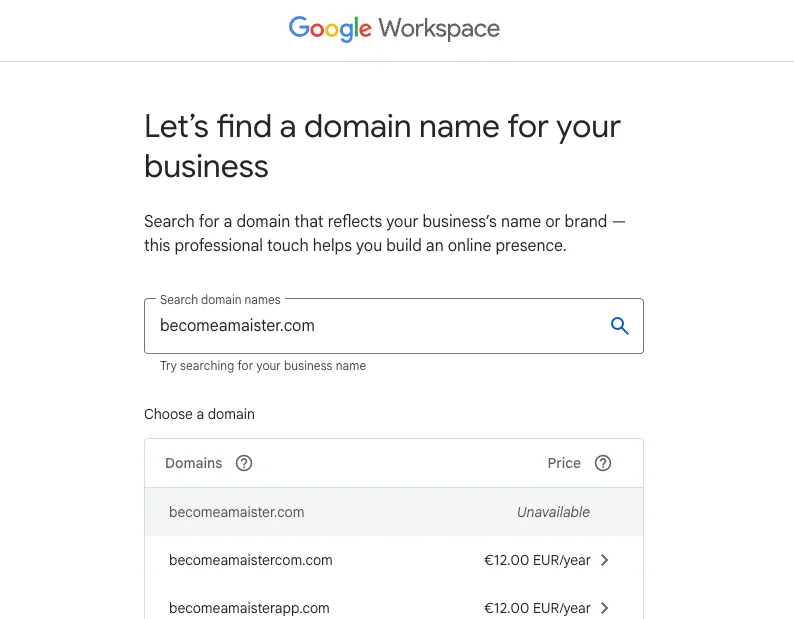
- Search for the domain name you want. If it’s taken, try your next idea. When you find one that is available, check the yearly price shown, then select it.
- Choose the Business Starter plan. It includes everything a small business needs.
- Create your first email address. Use something you are happy to share with customers, such as
hello@or your first name. - Enter your payment details and confirm. Google charges for the domain once a year and for email every month.
- Sign in to Gmail with your new address and send a test email to your personal address. If it arrives, everything works.
Warning
Your domain renews automatically every year using the card on file. If that card expires, the renewal fails, and after a grace period someone else can buy your domain. Put a reminder in your calendar to check your payment card each year.
If you already have a domain
Keep it where it is. There is no need to move it. Chapter 6 shows you how to connect it to your new website.
- If you already have email on your domain, and it works, you are done with this section.
- If you don’t have email on your domain yet, sign up for Google Workspace as above, but choose the option that says you already have a domain. Google then asks you to prove you own it by adding a short line of text to your domain’s settings, and shows you how for most domain providers.
Tip
If Google Workspace is more than you need, Zoho Mail is a cheaper way to get email on your own domain. Its Mail Lite plan costs about $1 per person a month, paid yearly. You sign up at zoho.com/mail. Zoho doesn’t sell the domain as part of sign-up, so you buy it separately first and then connect it to Zoho, which takes a few extra steps.
2.3Set up Claude
About 20 minutes
What this is for
Claude is where you will do most of the work, from writing your brief to building the website, so it is worth setting up properly once. Use your new business email, keep your logins in one safe place, and make sure your account is in your own name, so you always own your work.
This section has two parts: creating your account, then setting Claude up for your website.
Claude’s features and menus change often. If you are reading this a while after it was published, a button may have moved or been renamed, but the steps should still point you in the right direction.
Part 1Create your account
Step by step
- Choose a place to keep your logins. The password manager built into your browser or phone works well, for example Apple Passwords or Google Password Manager. Bitwarden is a good free option if you want a separate app. Save every new login there as you go.
- Create your Claude account. Go to claude.ai and sign up with your business email. If you already use Claude with a personal email, you can keep that account instead.
- Upgrade to Claude Pro. In Claude, open your settings, choose the Pro plan and pay monthly. You can switch to yearly later if you plan to keep it.
- Install the Claude desktop app. Download it from claude.com/download, for Mac or Windows, and sign in. Claude Code lives in this app, so you won’t need a terminal: the text-only window programmers use to type commands.
- Check that Claude Code is there. In the desktop app, click Code at the top. If it opens, you are ready. On Windows, the app may ask you to install a free tool called Git first. Follow its instructions, then restart the app.
- Check that Claude Design is there. In Claude, start a new conversation. In the message box, open Output: if you see Design, you are ready. You will use it to design your pages in chapter 4.
Part 2Set Claude up for your website
Three settings make every later step easier: instructions that tell Claude who you are, a project that keeps all your website work in one place, and knowing where to check your usage.
Step by step
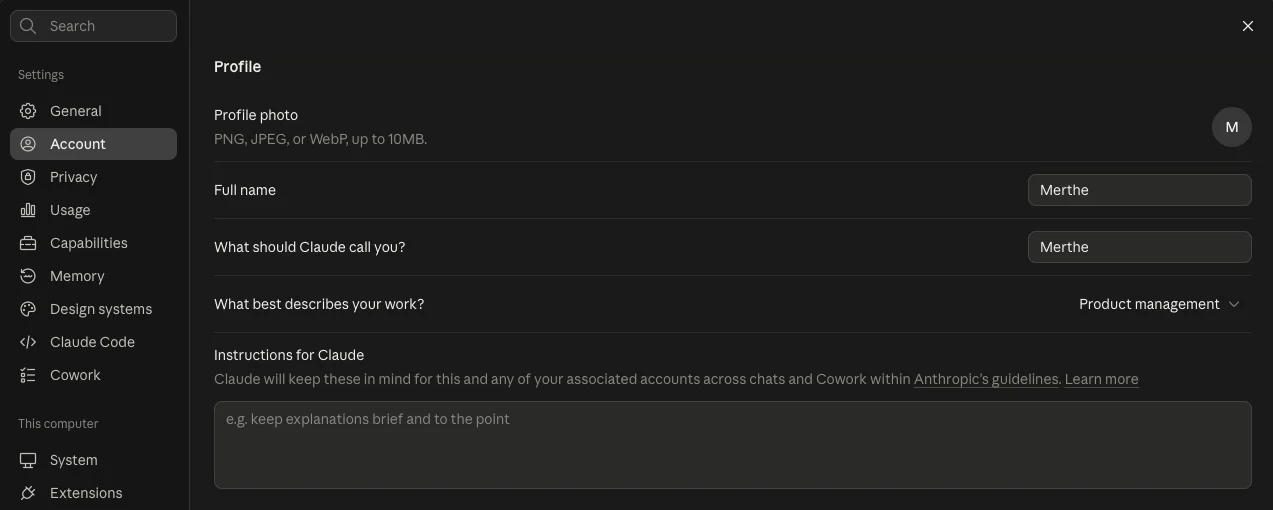
- Tell Claude about yourself. In Claude, click your name in the bottom left corner, then Settings (not Organization settings, if you see both). Open the Account tab and find Instructions for Claude. Write a few lines there that Claude will take into account in every conversation, for example P1:
Copy-paste text P1
Instructions for Claude
What this prompt does: Tells Claude who you are and how to help you, in every conversation.
I run [YOUR BUSINESS IN ONE SENTENCE], based in [CITY OR
COUNTRY]. I am building my own website and I am new to
technical things.

1. Explain any technical term in plain words the first time
you use it.
2. When I need to do something, give me one step at a time,
with exactly what to click or type.
3. Before anything that costs money, deletes work or is hard
to undo, warn me and wait for my go-ahead.
4. If you are not sure where a button or setting is, say so
rather than guessing.
5. Write in American English, and keep answers short unless
I ask for more.
- Create a project for your website. In Claude, a project is a workspace for one piece of work: it holds files and instructions that every conversation inside it can use. Click Projects, create a new one and name it after your website, for example “Studio Luna website”. Leave it empty for now. In chapter 3, your brief goes in here, so Claude knows your business in every conversation about your website.
- Find your usage. Click your name in the bottom left corner again, then Settings, and open the Usage tab. It shows how much of your limit you have used and when it resets. Check it before a long working session, so you don’t run out halfway through.
Don’t sign up for Netlify, ChatGPT, Higgsfield or a booking tool yet. Each one comes up in the chapter where you need it, so you don’t pay for anything before you use it.
Tip
These steps set Claude up for building your website. To get the most out of Claude for the rest of your business, from choosing the right model to connecting it to your other apps, see our guide Put Claude to Work.
You’re all set. Your tools are in place, your domain and email are yours, and Claude knows who you are and what you’re building. Setting up is the least exciting part of this guide, and it’s done.
Now the good part begins. In chapter 3, you fill your project with everything Claude needs to design your website.
Let’s build your dream website.
Sources, checked October 2026. Claude plans and Claude Design: claude.com/pricing and Claude Help Center. Claude Code in the desktop app: Claude Code docs. Netlify: netlify.com/pricing. Zoho Mail: Capterra. Google Workspace and domains: Google Workspace Help and Email Vendor Selection. Booking tools: Capterra and Pabau. Plausible: Seline. Spline: Costbench.