
What you will get
a first Skill enabled or created, and tested.
ALL PLANS · Team and Enterprise: an administrator must enable Skills first
A Skill is a saved working method: instructions, sometimes files, that Claude loads automatically when your request matches. You ask "write up the minutes of this meeting", and Claude applies your template every time, without you pasting it again.
Where to start? Run P7 to find out which Skills to enable or create.
Prompt P7
Find the right Skills
What this prompt does: Claude sorts your recurring tasks and identifies your top 3 Skills.
Help me identify the Skills that would save me time. A Skill is a set of instructions that Claude loads automatically when a task matches, so the task is always done the same way.

First, ask me, all at once:
1. My job and my activities.
2. The 5 tasks I repeat most often.
3. The tools and formats I use.
4. The tasks whose results vary too much from one time to the next.

Then:
1. Sort my tasks into: Skill, simple prompt or Project.
2. For up to 3 Skills: name, task, expected result, time saved.
3. Distinguish the Skills provided by Anthropic that I can enable in my settings from the ones I need to create myself.

Do not invent any Skill, product name or installation link. If in doubt, write "to check in the Skills section".
Your result Your tasks sorted and 3 priority Skills.
Next step Enable the existing Skills, then create the first one with P8.
Enable an existing Skill
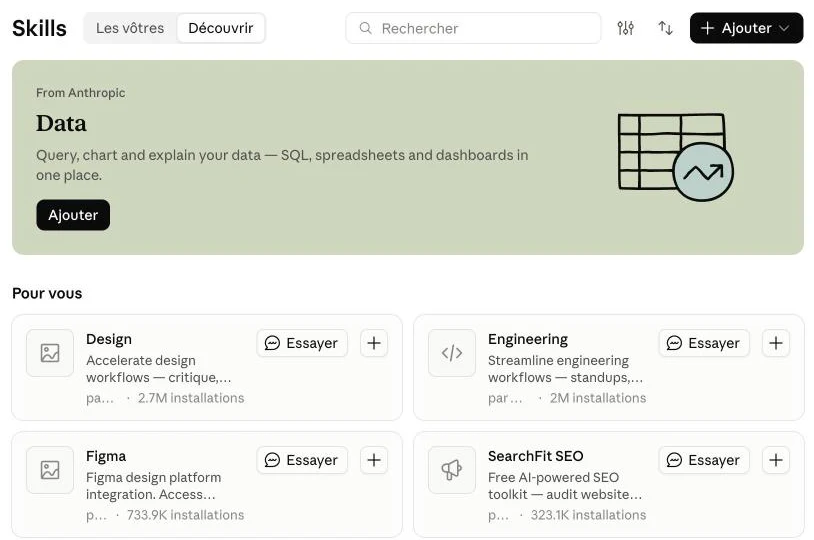
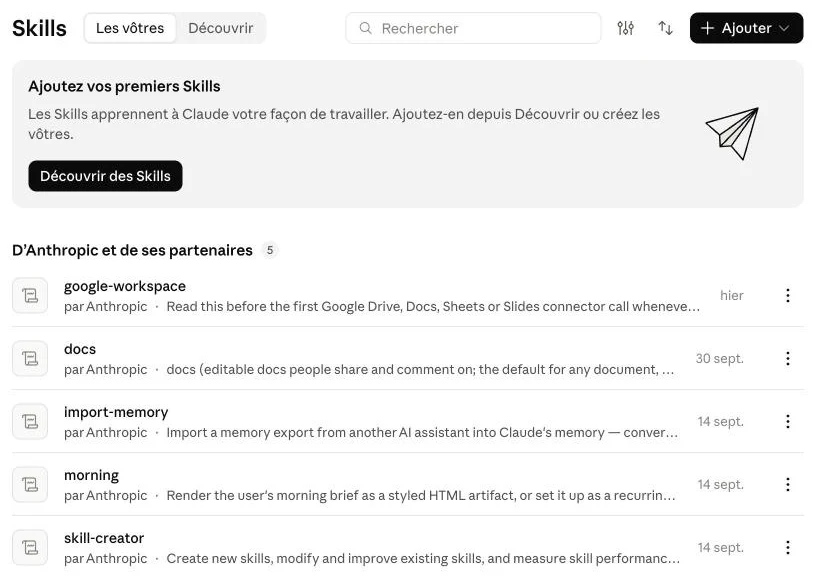
- Left sidebar → Customize → Skills.
- Discover tab: browse the suggested Skills, click Try or add them with +. Yours tab: find the ones already active.
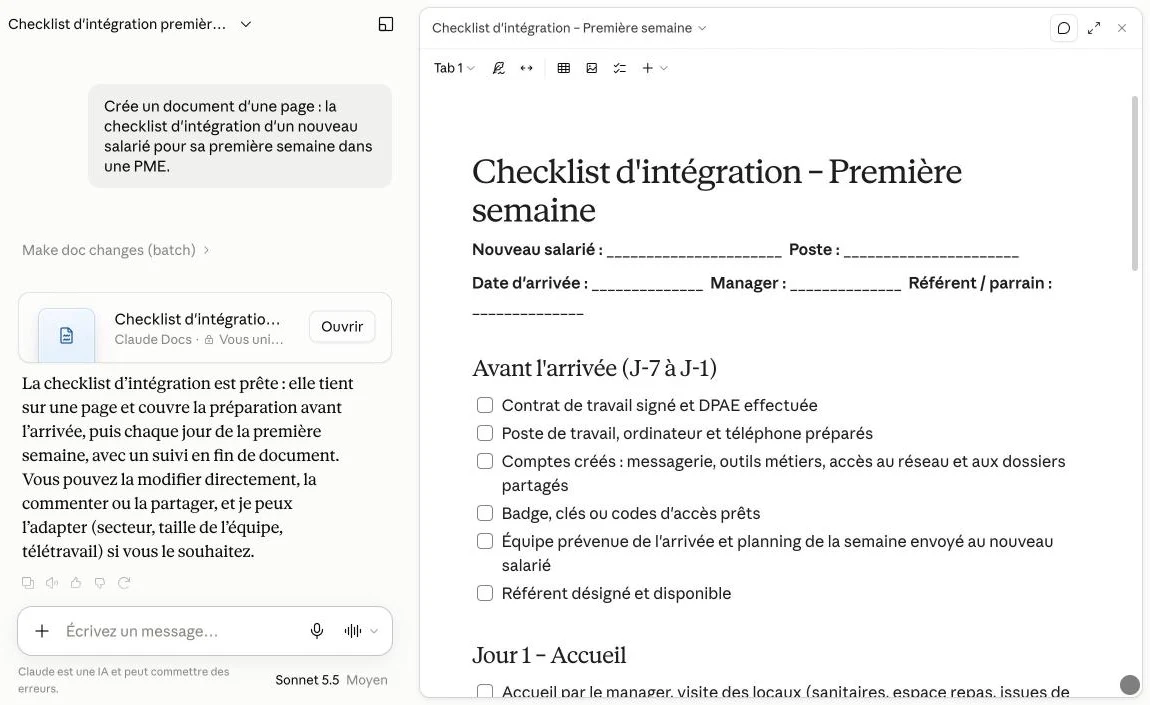
- Test: "create a 5-slide presentation on [your topic]" (file creation may depend on your plan).
Create your own Skill
- Run P8 and follow the steps.
Prompt P8
Create my first Skill
What this prompt does: Claude guides you from the idea to the SKILL.md file, then to the test.
Help me create my first Skill for Claude. I am a beginner. Do one step at a time and wait for my answer.

1. Choose: ask me which recurring task to hand over. If I have no idea, suggest: a follow-up email, meeting minutes, a weekly report.
2. Define: ask me what a good result looks like (length, format, tone) and offer to let me paste a successful example.
3. Write: produce the complete SKILL.md file:
<format>
---
name: name-in-lowercase-with-hyphens
description: One sentence saying when to use this Skill.
---
# [Title]
## When to use this Skill
## Steps to follow
## Output format
## Avoid
</format>
4. Install: explain how to create the folder, compress it into a ZIP and upload it in the Skills section.
5. Test: give me a test sentence and 3 points to check.
6. Fix: if the test fails, suggest a corrected version.

Do not invent any Claude feature.
Your result A complete SKILL.md, ready to install and test.
Next step Upload the ZIP, test it, and fix it with Claude if needed.
- Create a folder named after the Skill (lowercase, hyphens) and save the
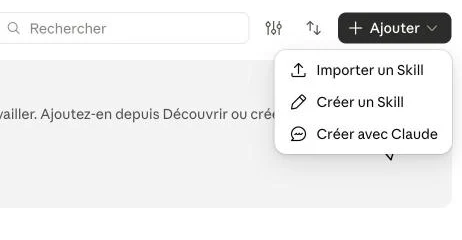
SKILL.mdfile in it. - Compress the folder into a ZIP, then click Add → Upload a Skill. You can also choose Create with Claude to build it in conversation.
- Check that it is enabled and test it. It stays private to your account. Create one Skill per task, rather than one that does everything.
Example · A simple SKILL.md
---
name: meeting-minutes
description: Use to turn meeting notes into structured minutes, when the user asks for minutes, a meeting summary or a recap.
---
# Meeting minutes

## Steps to follow
1. Identify the date, the attendees and the purpose of the meeting.
2. Extract the decisions made.
3. List the actions: who does what, by when.
4. Flag the open points.

## Output format
- Title: Minutes — [topic] — [date]; 1 page maximum
- Decisions, then actions (action | owner | deadline), then open points

## Avoid
- Inventing a deadline or an owner not in the notes: write [TO CONFIRM].
Expected outcome
1 personal Skill installed and tested.